Changelog

Stay up to date with all the latest changes to Zenovay.

Fixed a blank page when opening some links directly

Opening certain Zenovay pages directly, for example from a bookmark, a pasted link or a redirect back from Stripe, could show a blank white page. Loading Zenovay first and navigating from there worked, which made the problem easy to miss.

  • Your dashboard now loads correctly when its address is opened directly
  • Returning from Stripe after a purchase no longer lands on a blank page
  • The add a domain page, and domain pages opened from a direct link, are fixed as well
  • Nothing needs to change on your side. If you saw a blank page before, reloading is enough

Connect Stripe from the Stripe App Marketplace

Zenovay is now listed on the Stripe App Marketplace. You can install it from Stripe and connect your account in one click, with no restricted API key to create, copy or paste.

  • Install from the Stripe App Marketplace, authorize once, then pick which of your sites the Stripe account should be attributed to
  • The app requests six read only permissions and no write permissions, so it can never create, modify or refund anything in your Stripe account
  • Charges, invoices, checkout sessions and subscription changes are matched to the visit that produced them, so you get revenue by traffic source, landing page and campaign
  • Open any customer in the Stripe Dashboard and a Zenovay panel shows their first visit, traffic source, pages viewed and attributed value
  • The existing restricted API key connection keeps working exactly as before. Nothing changes for sites already sending revenue
  • Fixed a case where one Stripe subscription charge could be recorded more than once, which overstated that customer's revenue

Sort and share your User Journeys view

The User Journeys table can now answer "who spent the most", and hand that exact view to a teammate.

  • Sort by pageviews, amount spent or last active. Click a column once for highest first, click again to reverse it
  • A "Paying only" filter narrows the list to users who have spent money
  • Sorting and filtering run on the server, so they cover every user in the selected period, not only the rows already loaded
  • Your period, search, filters and sort now live in the page URL. Copy the link and a teammate opens the same view. A shared period is still limited to what the recipient's own plan allows

Install your tracking script with a pull request

Adding Zenovay to a site used to mean pasting a snippet into your HTML by hand. You can now connect a GitHub repository instead and let Zenovay do it: it works out your framework, adds the tracking script, and opens a pull request for you to review.

It shows up when you add a domain, during onboarding, and under your domain's General settings. There are three ways to install and you can switch between them at any time.

  • Open a pull request: connect a GitHub repository, pick it, and Zenovay prepares the change in an isolated sandbox. You get a pull request with the exact diff, and the change only takes effect once you merge it
  • Run it yourself: the same install performed locally by the Zenovay CLI
  • Add the snippet manually: the original copy and paste, still there
  • Zenovay never commits to your default branch. Every change reaches your code as a pull request you approve
  • Each domain has its own GitHub connection, so different sites can use different accounts. You can disconnect or switch the account whenever you want
  • If the script is already installed, the run stops and tells you instead of opening an empty pull request
  • The interface is available in English, German, French, Spanish, Portuguese and Japanese

Import your history from PostHog

If you are moving to Zenovay from PostHog, or running both, you no longer have to start with an empty dashboard. Your site's Data, then Import section now has a PostHog tile.

You need your numeric PostHog project ID, a personal API key, and your region. Left alone it imports the last 365 days ending yesterday, and you can set a custom range instead.

  • Pageview traffic only: daily visitors and pageviews, plus top pages, referrers, countries, devices, browsers and operating systems
  • Custom product events, feature flags, experiments, surveys and session recordings are not imported. Export those from PostHog, or keep the project readable, before you cancel anything
  • The key has to be a personal API key. A project API key is rejected. You can make it read only, scope it to the one project, and revoke it as soon as the import finishes
  • A large import can finish as partial. PostHog limits its query API to 120 queries an hour on older projects, so the daily numbers are fetched first and some breakdowns are skipped. Run it again for the remaining dates
  • Available on Pro and above. It is a one time historical migration, not an ongoing sync

Full guide: Integrations, then PostHog Importer.

A/B experimentation and feature flags, on Pro and above

Both of these have been in Zenovay for months without an announcement, so a number of people on Pro are paying for capabilities they do not know they have.

A/B experimentation runs frequentist A/B/n tests against the goals you already track. The tracker assigns each visitor a variant using a hash of their visitor ID, so the same person always sees the same variant. Results show per-variant conversion rates and a 95% confidence interval on the lift over control.

Feature flags are remote config with targeting rules, so a feature can be turned on, off, or on for part of your traffic without a redeploy.

  • Both are available on Pro, Scale and Enterprise. Pro allows 5 concurrent experiments
  • An experiment needs one line of JavaScript on your site to apply the variant
  • In cookieless mode the variant assignment is scoped to the browser tab and resets when the tab closes

See which AI crawlers read an old version of your page

You update your pricing page. An AI assistant keeps describing the old one. Until now there was no way to tell whether that was plausible or paranoid.

The AI Influence tab's Activity section now lists pages that changed after a crawler last read them, with the crawler and the date of its last successful visit.

  • Both halves are measured: the crawler visit comes from your own server, and the change comes from a content comparison that ignores per-request noise like tokens, timestamps and build hashes
  • A page we have not yet seen change is a baseline, never reported as out of date
  • A crawler that has not fetched a page successfully is shown as unseen rather than guessed at
  • Pages that change constantly, like a blog index, are set aside instead of dominating the list

We measure crawler visits to your site. We do not query AI assistants and cannot see what any model answers.

See the traffic we did not count

Every analytics tool quietly throws traffic away, then asks you to trust the number that survives. Zenovay now shows you the discarded half next to the number it qualifies.

  • A new card on the Analytics tab lists what was filtered out and why: bots by name, plus your own IP, path, hostname and country rules
  • Each rule shows how many hits it removed, so a rule that is quietly eating real visitors is visible instead of invisible
  • The full breakdown lives on the Trust tab
  • IP rules are shown as a rule, never as an address

Nothing about what gets counted changed. The filtering was always happening; now you can audit it.

Replay the last 24 hours on the globe, and flatten it to a 2D map

The globe only ever showed you the present. Press the history button and it now plays the last 24 hours back frame by frame, so you can watch a day's traffic arrive instead of reading it off a chart.

  • Playback starts on its own, with a scrubber you can drag to any moment
  • Visitors pop in as each frame lands, and the panel's count, referrers, countries and devices describe that frame rather than live traffic
  • The map button flattens the globe into a 2D map and back, animated rather than cut
  • Frame times follow the 12 or 24 hour setting in your account preferences

The window is a fixed 24 hours on every plan. A wider window spreads the same visitors across bigger buckets, which makes a replay emptier rather than richer.

Globe filters combine, and reach every value

The referrer, country and device chips on the globe were a single choice between them. They are now three, and they work together.

  • Picking Mobile and then Germany shows German mobile visitors. Before, the second choice replaced the first
  • Each row counts against your other filters, so the numbers describe what you are actually looking at
  • Rows scroll sideways and reach every value. They were capped at four
  • Filters now correctly hide the visitors they exclude, including during a replay
  • An open visitor card stays with its visitor as you turn the globe, instead of sliding along the edge of the screen
  • A visitor on the far side of the globe is hidden, rather than showing faintly over the hemisphere facing you
  • Every button in the globe panel now explains itself on hover

Your light or dark mode choice is saved again

The theme preference was neither read nor stored, so every fresh load fell back to the default instead of the mode you picked. Fixed.

Crawler tracking now sees robots.txt, llms.txt and your sitemaps

The crawl beacon treated those files as static assets and dropped them before reporting. They are exactly the files an AI crawler fetches on purpose, to decide how to treat your whole site, so "who read my robots.txt, and did they then respect it" was unanswerable. CLI v1.0.34 fixes it.

  • Requests to /robots.txt, /llms.txt, /llms-full.txt and any sitemap*.xml now appear alongside your ordinary pages
  • Ordinary assets that share those extensions, like /manifest.json or /feed.xml, are still ignored, so nothing noisy is added
  • Run npx @zenovay/cli@latest init again to upgrade an existing install. It rewrites the block in place, in one run, whatever version you were on
  • A beacon block you edited by hand is never rewritten: the CLI prints the new one and leaves your file alone
  • See AI crawler tracking for the full setup
  • The same release ends zenovay init with a summary of your site's privacy settings, covering cookieless mode, session replay, heatmaps and whether replay waits for consent, plus a link to the consent guide so you can check what applies to you

Sharper AI crawler views, and a new setup guide

Several fixes to the AI Influence tab, plus documentation for how crawler tracking actually works.

  • Page search in a crawler's detail panel now understands wildcards, so /blog/* narrows to everything under /blog. It previously matched the asterisk as a literal character and found nothing
  • Ahrefs, Majestic, SleepBot and Tablif are identified by name and logo instead of landing in Other
  • A crawler we cannot identify now shows its own initial rather than a generic letter, so two unnamed crawlers no longer look like the same one
  • The selected crawl category is part of the page URL, so a refreshed or shared link reopens the exact view instead of whichever category happened to be busiest
  • A new guide, AI crawler tracking, covers why crawlers need a server-side beacon, the one-command install, and what each category means

See which AI crawlers read your site

AI crawlers do not run JavaScript, so no browser-based analytics tool can see them, ours included. Zenovay now records them on the server instead, and tells you which ones were genuine.

  • A new AI crawl activity view shows which crawlers fetched your site, how often, which pages they read, and how that changed over time
  • Crawlers are grouped by what they are there for: answering someone's question in real time, indexing for AI search, or collecting training data
  • Each visit is checked against the operator's published address ranges or reverse DNS, so a request merely claiming to be ChatGPT is flagged instead of being taken at its word
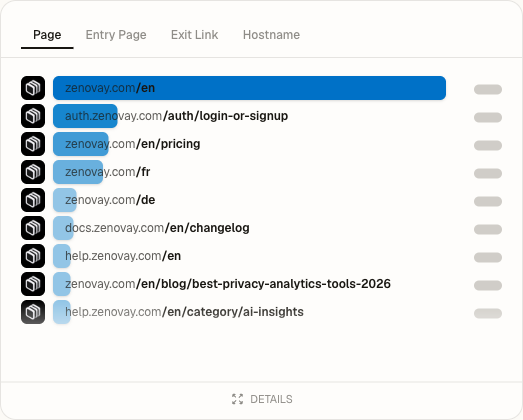
  • Pages are listed with their host, so a subdomain is never counted as the main site
  • Running npx @zenovay/cli init installs the server-side beacon for you. It recognises an existing setup and adds to it rather than replacing it
  • Zenovay identifies 157 AI crawlers by name, covering assistants, AI search, training crawlers, data collectors and browsing agents
  • Every one of them is documented in a public directory at zenovay.com/ai-crawlers

Charts and dashboards load without jumping

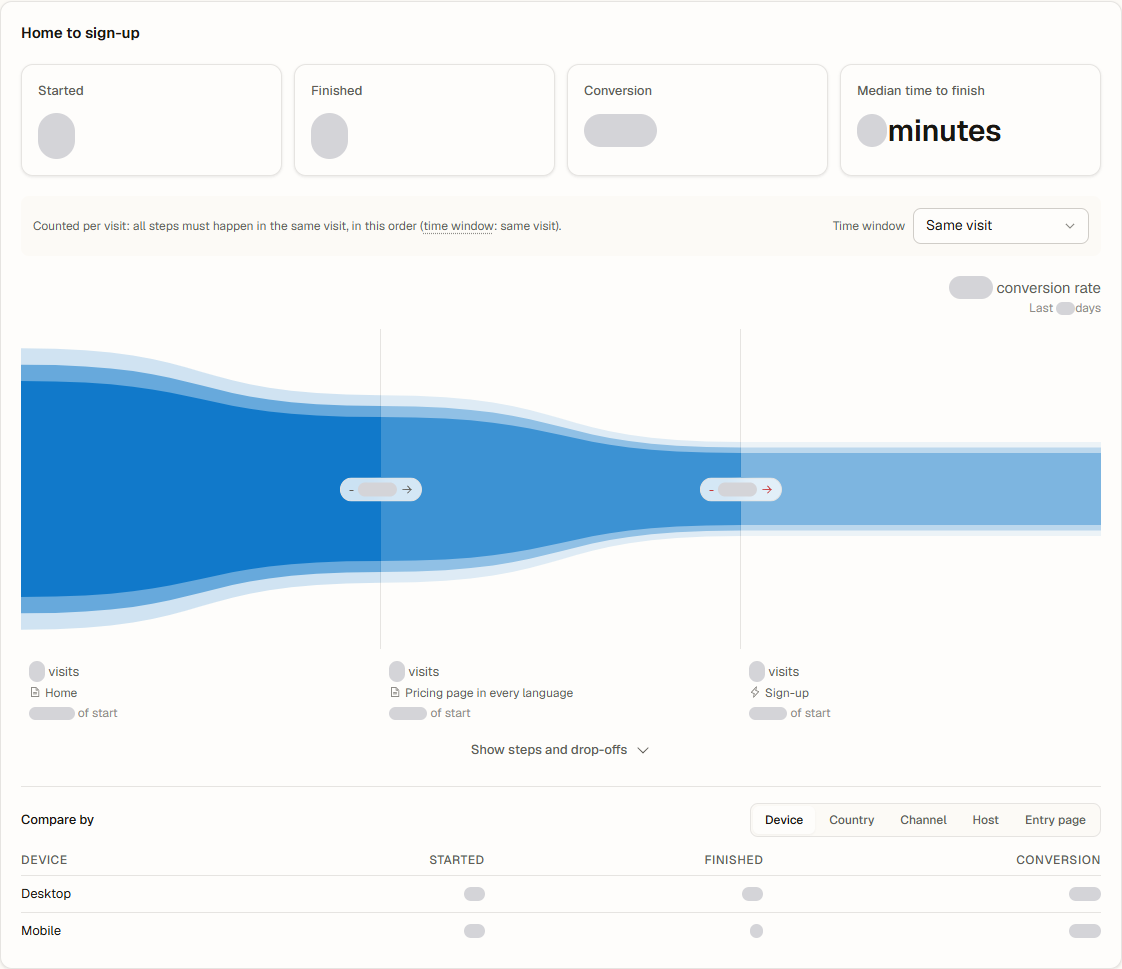
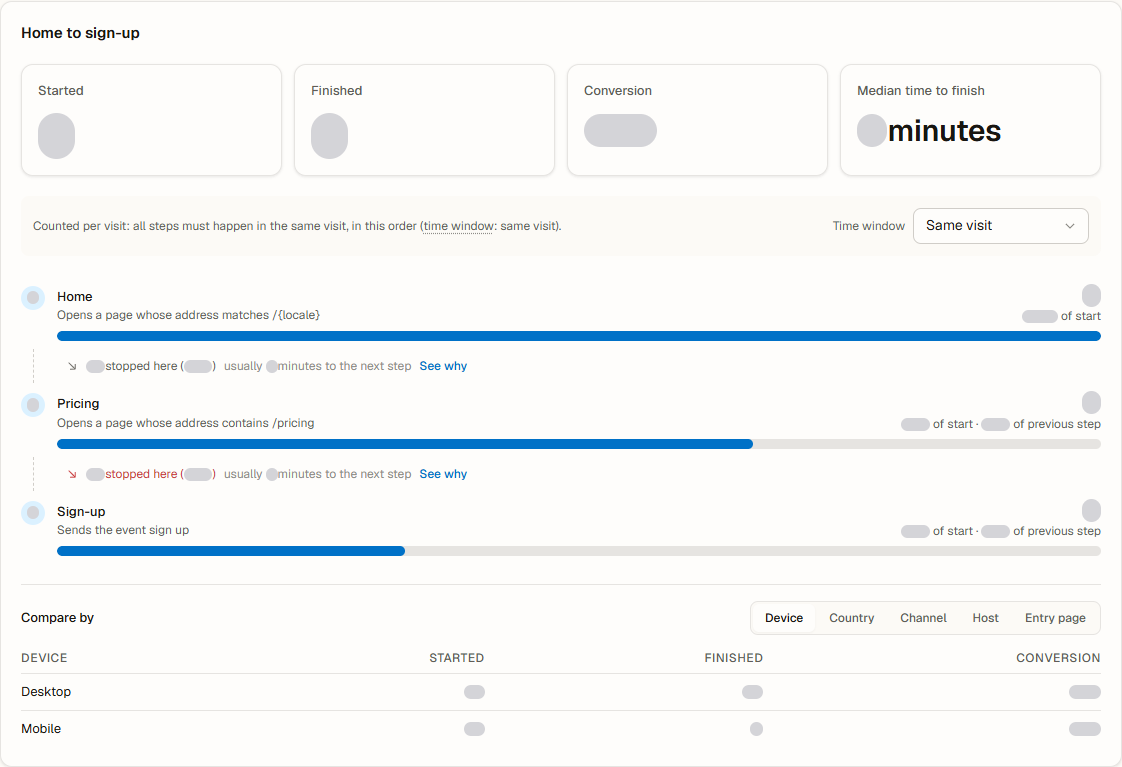
Opening a tab used to replace whole cards with grey blocks, and the layout often shifted once the data arrived. Cards now hold their shape from the first frame and only the values fill in.

  • While a chart loads, you see an outline of that chart at exactly the size the finished chart will be, so nothing moves when the data appears
  • Card titles, filters, legends and axis labels stay on screen throughout instead of vanishing and coming back
  • Metric cards keep their label and only the number loads
  • Data arrives with a short cross-fade rather than a hard swap
  • Several screens that previously showed nothing at all while loading, including parts of Performance, Uptime and the client portal, now show an outline of what is coming
  • Loading animations follow the reduced-motion setting in your operating system
  • Cached and fast loads still show no placeholder at all

Creating an extra workspace now asks for a plan up front

Additional workspaces have always been a paid feature, but the plan picker still offered a free option that did not match. It has been removed.

  • The plan picker now shows Pro, Scale and Enterprise when you add a workspace
  • Your first workspace is unaffected and stays free on every plan

A faster, redesigned documentation site

These docs have been rebuilt around a single content view that uses the same colours as your Zenovay dashboard. They now open in dark mode, and you can switch to light or follow your system setting from the bottom of the sidebar.

  • Moving between pages no longer reloads the site, so navigation is close to instant
  • Ask Zenovay is available on every page, and your recent conversations stay in your browser
  • Copy any page as Markdown for an AI assistant, read it as plain text, or open it straight in ChatGPT or Claude
  • Every page now links to the previous and next one, and you can tell us whether it helped