Dashboard Overview
Your Zenovay dashboard provides real-time insights into visitor behavior, trends, and conversions.
Dashboard Sections
Real-Time View
Monitor current visitor activity as it happens:
- Active Visitors - Users currently on your site
- Live Page Views - Pages being viewed right now
- Active Sessions - Ongoing user sessions
Analytics Overview
View key metrics at a glance:
| Metric | Description |
|---|---|
| Total Visitors | Unique visitors in selected period |
| Page Views | Total pages viewed |
| Bounce Rate | % of single-page sessions |
| Avg. Session Duration | Average time spent per session |
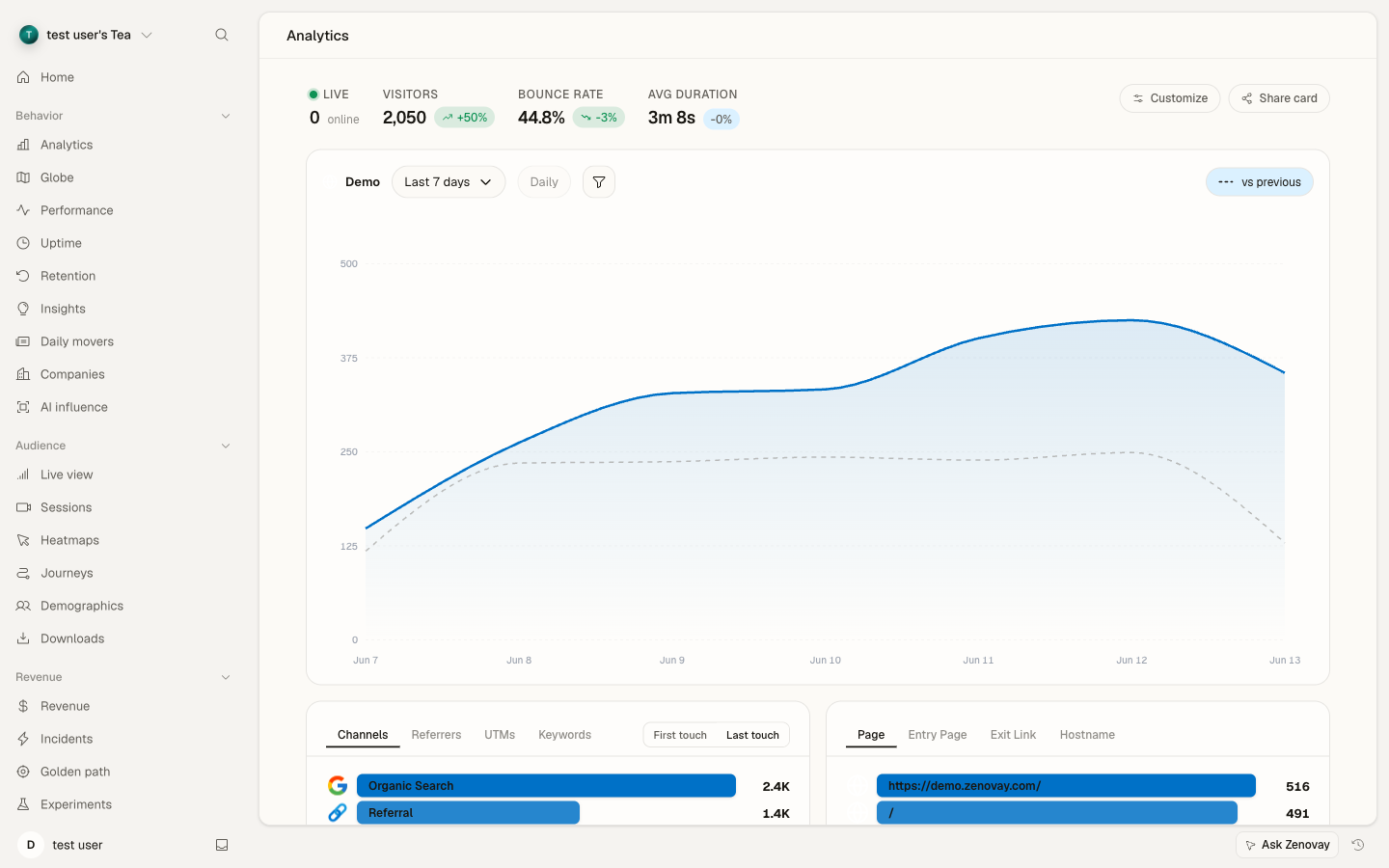
Top Pages
The Pages card on a website's Analytics tab shows your busiest pages in four tabs:
| Tab | What a row counts |
|---|---|
| Page | Page views of the page. Every page load, reload, single-page app route change and page restored from the browser's back/forward cache counts; a change of only the #hash does not. Bot traffic is left out. |
| Entry Page | Visits that started on the page |
| Exit Link | Clicks on links to other sites, grouped by destination |
| Hostname | Visits per hostname |
Hover a row to see more:
- On Page: the page's Visits (the visits that viewed it), its Exit rate (the share of its page views that were the last page view of their visit) and its Median time on page (the time from a page view to the visit's next page view; the last page view of a visit has no measurable time and is left out).
- On Entry Page: the Bounce rate of that entry page, that is, the visits that started there and viewed no other page, divided by all visits that started there.
Over all entry pages, the visits and the bounced visits add up to the visits and the bounce rate of the whole site. To look at the visits that started on one page, hover its row and click the filter icon (Filter by this value): the filter "Entry page is …" selects exactly those visits.
Bounce rate per landing page, split by channel or device, is also in Retention → Bounce (Pro). See Page Quality Metrics and Cohort Bounce.
Traffic Sources
Understand where your visitors come from:
- Direct - Direct traffic
- Organic Search - Google, Bing, etc.
- Referral - Other websites
- Social - Social media platforms
- Email - Email campaigns
- Paid - Paid advertising
Key Features
Filters
Filter data by:
- Date range (today, week, month, custom)
- Traffic source
- Device type (desktop, mobile, tablet)
- Location (country, city)
- Browser / OS
Up to 10 filters can be applied simultaneously. Filters sync with the URL so you can share filtered views.
Goals and Conversions
Track important business metrics by setting up goals in Journeys → Goals, or send them from your code:
// Track a conversion goal (created automatically the first time)
zenovay('goal', 'trial_signup', {
value: 29.99
});
Goals can be created in Journeys → Goals or are created automatically the first time your code sends them with zenovay('goal', ...). See Goals.
Funnels
Analyze conversion funnels in Journeys → Funnels:
- Define funnel steps
- See drop-off at each stage
- Identify optimization opportunities
- Calculate conversion rates
Journeys
Visualize how users navigate your site with session journey maps:
- Entry pages
- Path through your site
- Exit pages
- Drop-off points
3D Globe
The 3D Globe provides a real-time geographic visualization of your visitors:
- Live visitor markers with DiceBear avatars
- Activity feed showing recent visitors
- Ambient music player
- Fullscreen mode for presentations
- Public sharing via link
See the Real-time Tracking documentation for details.
Visitor Value Scoring
Zenovay calculates a value score (0-100) for each visitor based on behavior signals:
- Pages viewed and time on site
- Return visit frequency
- Goal completions
- Engagement signals
The value score is displayed on the 3D Globe (marker size scales with value) and in visitor detail views.
Data Export
Export your data in multiple formats:
- CSV - For Excel and spreadsheets
- JSON - For custom integrations
API Access
Access your data programmatically:
curl -X GET 'https://api.zenovay.com/api/external/v1/analytics/{websiteId}' \
-H 'X-API-Key: zv_YOUR_API_KEY'
Dashboard Navigation
Sidebar Navigation
The sidebar provides access to all dashboard areas:
Global Navigation:
- Home - Main dashboard overview
- Domains - Your tracked websites
- Agency - Multi-site management (Scale and above)
- AI Insights - AI-powered analysis (Pro and above)
- Interviews - User interview tools (Pro and above)
- Settings - Account and workspace configuration
- Support / Help Center
Domain Navigation (when viewing a specific domain):
| Group | Tabs |
|---|---|
| Behavior | Analytics, Globe, Performance, Uptime, Retention, Insights, Daily movers, Companies, AI influence |
| Audience | Live view, Sessions, Heatmaps, Journeys, Demographics, Downloads |
| Revenue | Revenue, Incidents, Golden path, Experiments |
| Reliability | Errors, Trust, Carbon, Consent |
| Configure | Widgets, Query Studio |
API key management is under Settings → Security → API keys, not the top-level sidebar.
Command Palette
Press Cmd+K (Mac) or Ctrl+K (Windows/Linux) to open the command palette for quick navigation and search across your dashboard.
Customization
Personalize your dashboard:
- Dark/light mode toggle
- Collapsible sidebar
- Team-based access and organization switching
Next Steps
Open Domains, select a site, and use the tab group to explore each analytics view.
Learn more:
- Custom Events - Track what matters
- API Reference - Programmatic access
On this page