Quick Start Guide
Get your website analytics up and running with Zenovay in under 5 minutes.
Add a single lightweight JavaScript snippet to your website and Zenovay starts tracking page views, visitors, referral sources, and device information. The script is under 5KB gzipped, loads asynchronously, and has no effect on page performance. For cookieless deployments, a single data-cookieless="true" attribute switches the tracker to in-memory-only mode, which does not set cookies or write to localStorage.
Step 1: Create Your Account
Sign up for a free Zenovay account at auth.zenovay.com/signup.
Free tier includes: 1 website, 10,000 events/month, 1 year data retention
Step 2: Add Your Website
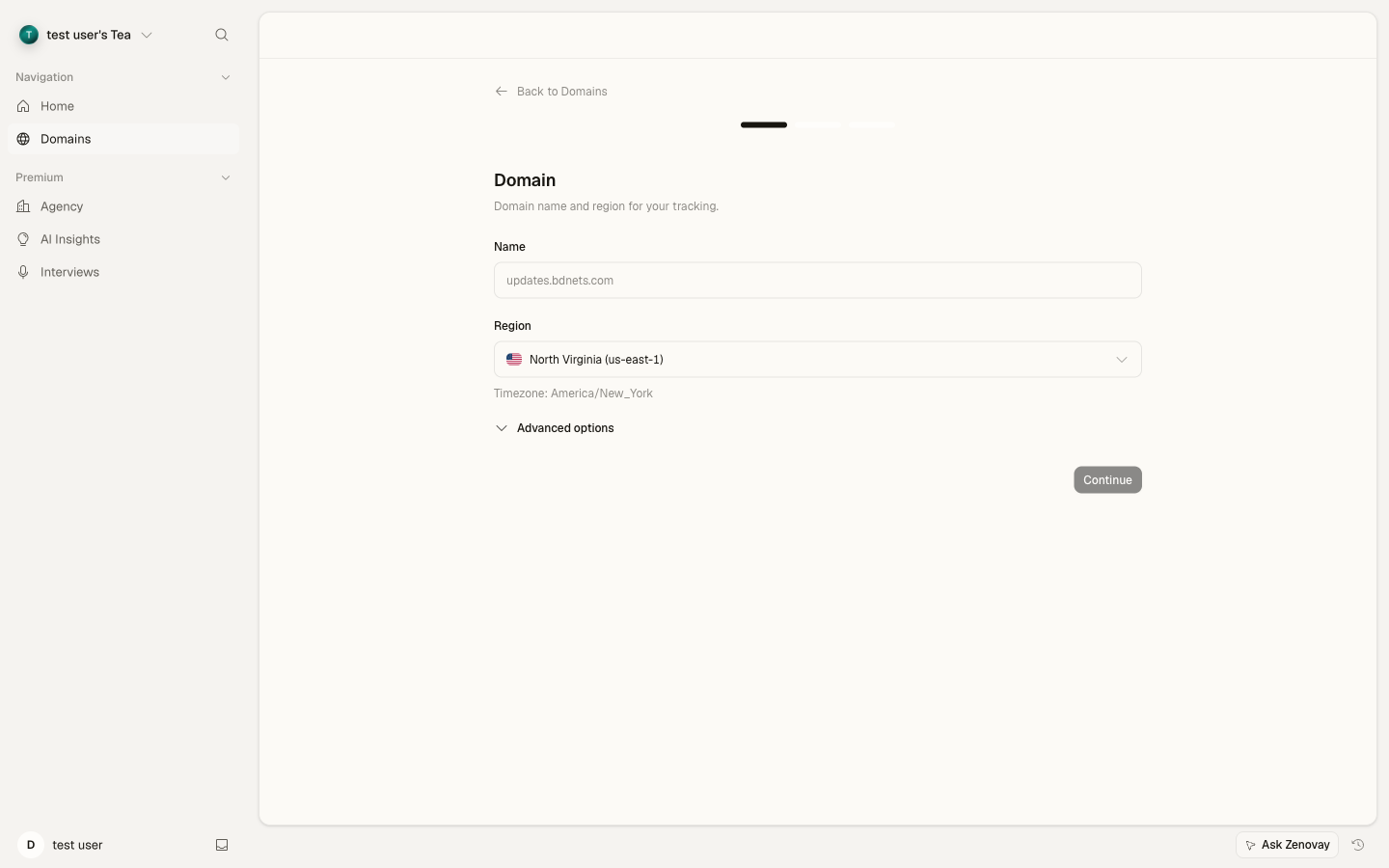
- Open Domains → Add domain in the sidebar.
- Enter your domain name (e.g.,
example.com). - Give your site a name.
- Click Add domain.
Step 3: Install the Tracking Script
Find your unique tracking snippet at Domains → your site → General (the Tracking script card). Copy it and add it to your website's <head> section:
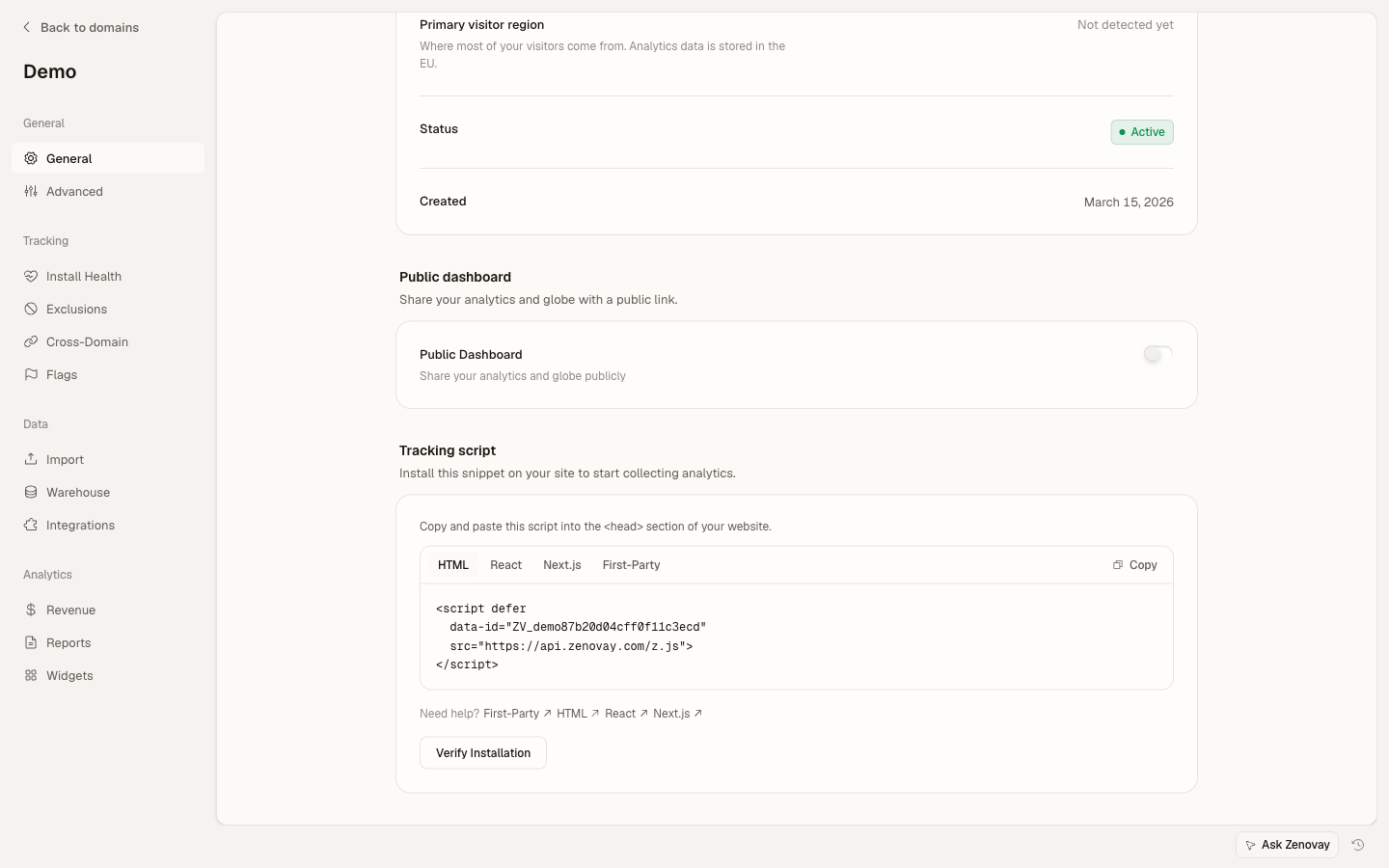
<!-- Zenovay Analytics -->
<script defer
data-tracking-code="YOUR_TRACKING_CODE"
src="https://api.zenovay.com/z.js">
</script>
Replace YOUR_TRACKING_CODE with your actual tracking code from the dashboard.
Step 4: Verify Installation
- Visit your website in a new browser window
- Go back to your Zenovay dashboard
- You should see your visit appear on the 3D globe within a few seconds
Once your script is installed, new visitors appear on the live globe within a few seconds. Open Domains → your site → Live view to see them in real time.
Platform-Specific Installation
WordPress Installation
- Go to your WordPress admin dashboard
- Navigate to Appearance > Theme Editor
- Select your active theme
- Edit the
header.phpfile - Add the tracking script before the closing
</head>tag
<!-- Zenovay Analytics -->
<script defer
data-tracking-code="<?php echo esc_attr(get_option('zenovay_tracking_code')); ?>"
src="https://api.zenovay.com/z.js">
</script>
<?php wp_head(); ?>
Next Steps
Now that you're tracking visitors, explore these features:
- Visitor Value Scoring - See which visitors are most valuable
- Real-time Analytics - Monitor your traffic live
- Custom Events - Track specific user actions
- API Integration - Access your data programmatically
Troubleshooting
Not seeing data in your dashboard?
- Check your tracking code - Make sure it matches exactly from your dashboard
- Verify script loading - Open browser dev tools and check the Network tab
- Disable ad blockers - Some ad blockers might block analytics scripts
- Check console errors - Look for JavaScript errors in the browser console
- Wait a few minutes - Data can take 1-2 minutes to appear
Tracking code not working on HTTPS sites?
Make sure you are using the HTTPS version of the script:
<script defer data-tracking-code="YOUR_TRACKING_CODE" src="https://api.zenovay.com/z.js"></script>Need help with a specific platform?
Check the detailed integration guides or contact the support team at support@zenovay.com.
Need Help?
- Check our troubleshooting guide
- Contact support@zenovay.com
Done. Your visitors will now appear on the 3D globe in real-time. Open Domains → your site to see the Analytics tab.