Add Zenovay Analytics to Astro
This guide covers adding Zenovay Analytics to an Astro site: installation, custom event tracking, View Transitions support, and cookieless mode. The tracker loads asynchronously under 1 KB and does not set cookies by default.
Quick Setup (2 minutes)
Add the Zenovay tracking script to your Astro layout and you are done. No npm packages, no build plugins, no configuration files.
Step 1: Get Your Tracking Code
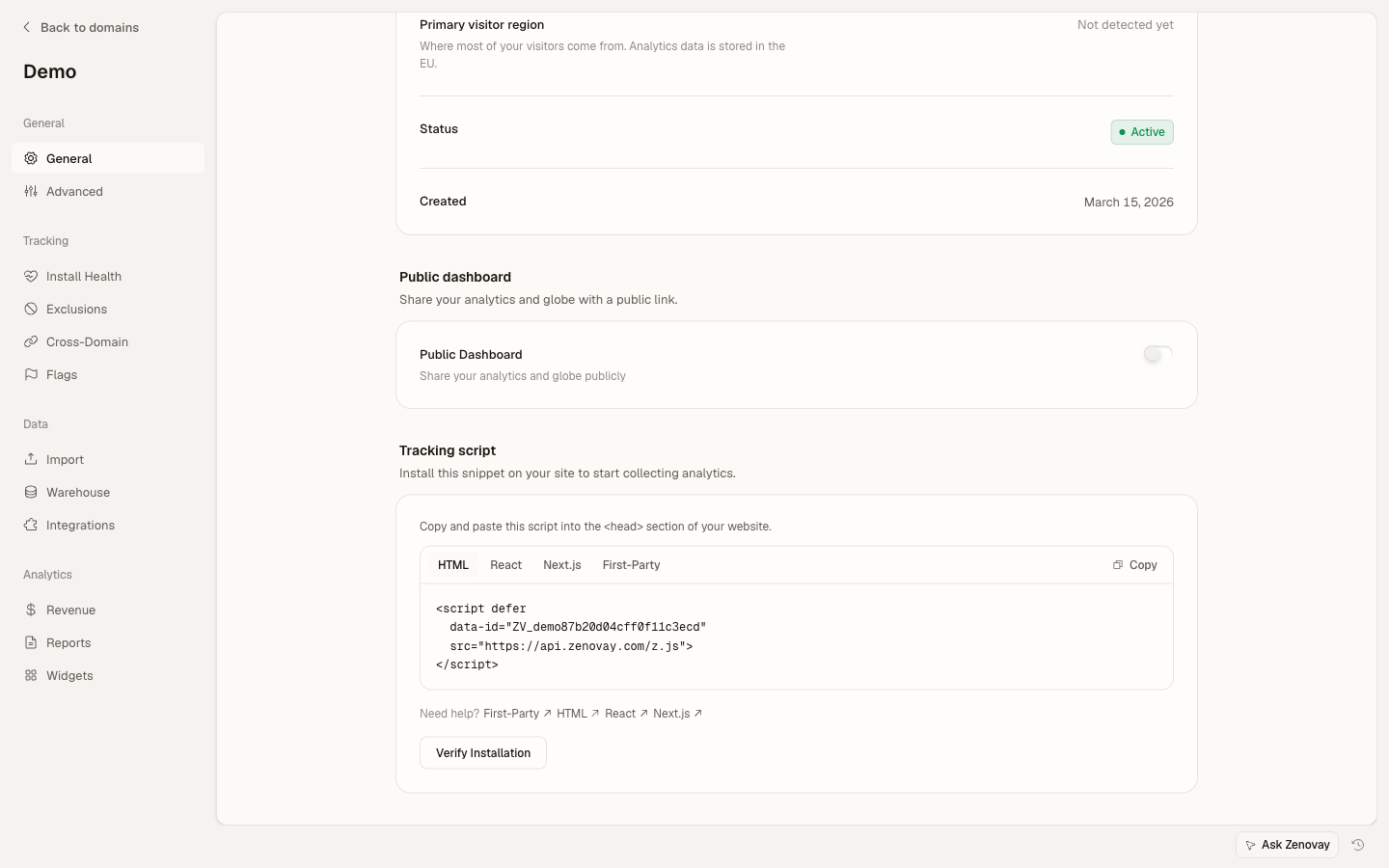
Sign in to your Zenovay dashboard, open Domains, click your site, and copy the script snippet from the Tracking script card on the General page.
Step 2: Add to Layout
Open your main Astro layout file and add the script tag inside <head>:
---
// src/layouts/Layout.astro
interface Props {
title: string;
}
const { title } = Astro.props;
---
<html lang="en">
<head>
  <meta charset="UTF-8" />
  <meta name="viewport" content="width=device-width, initial-scale=1.0" />
  <title>{title}</title>
  <script
    defer
    data-tracking-code="YOUR_TRACKING_CODE"
    src="https://api.zenovay.com/z.js"
  ></script>
</head>
<body>
  <slot />
</body>
</html>
That's it! Zenovay will automatically track page views on every page that uses this layout.
Step 3: Verify Installation
Visit your site in a browser and open the Zenovay dashboard. You should see a real-time visitor appear within seconds.
Replace YOUR_TRACKING_CODE with the code shown on your site's General page under Domains.
Custom Events
Track button clicks, form submissions, and other interactions using the global zenovay function.
Inline Script in Astro Components
---
// src/components/SignupButton.astro
interface Props {
plan: string;
}
const { plan } = Astro.props;
---
<button id="signup-btn" data-plan={plan}>
Sign Up for {plan}
</button>

<script>
const btn = document.getElementById('signup-btn');
btn?.addEventListener('click', () => {
  if (window.zenovay) {
    window.zenovay('track', 'signup_click', {
      plan: btn.dataset.plan,
    });
  }
});
</script>
Custom Events in Framework Components
If you use React, Vue, or Svelte islands inside Astro, call window.zenovay directly:
export default function DownloadButton({ file }: { file: string }) {
const handleClick = () => {
  if (window.zenovay) {
    window.zenovay('track', 'file_download', { file });
  }
};

return <button onClick={handleClick}>Download {file}</button>;
}
SPA Navigation with View Transitions
If you use Astro View Transitions, Zenovay automatically detects client-side route changes and records a new page view for each navigation. No extra configuration needed.
---
import { ViewTransitions } from 'astro:transitions';
---
<html lang="en">
<head>
  <ViewTransitions />
  <script
    defer
    data-tracking-code="YOUR_TRACKING_CODE"
    src="https://api.zenovay.com/z.js"
  ></script>
</head>
<body>
  <slot />
</body>
</html>
Zenovay listens for the browser History API (pushState / popstate) so it works with any client-side navigation method, including View Transitions.
Cookieless Mode
For privacy-friendly tracking without cookies or localStorage, add the data-cookieless attribute:
<script
defer
data-tracking-code="YOUR_TRACKING_CODE"
data-cookieless="true"
src="https://api.zenovay.com/z.js"
></script>
In cookieless mode, Zenovay uses a server-side hash of the visitor's IP subnet, user agent, and a daily-rotating salt to count unique visitors without storing anything on the client device.
Identify Users
If your Astro site has authenticated areas, identify logged-in users:
// After login or on authenticated pages
if (window.zenovay) {
window.zenovay('identify', 'user_123', {
  email: 'user@example.com',
  plan: 'pro',
});
}
Track Goals and Revenue
// Track a conversion goal
if (window.zenovay) {
window.zenovay('goal', 'newsletter_signup', { source: 'footer' });
}

// Track revenue
if (window.zenovay) {
window.zenovay('revenue', 49.99, 'USD');
}
TypeScript Support
Add type declarations so TypeScript recognizes window.zenovay:
/// <reference types="astro/client" />

declare global {
interface Window {
  zenovay?: (...args: any[]) => void;
}
}
Content Collections (Blog Analytics)
If you are using Astro Content Collections for a blog, every post automatically gets tracked as long as it renders through your layout. You can add post-specific metadata to events:
---
import { getCollection } from 'astro:content';
import Layout from '../../layouts/Layout.astro';

export async function getStaticPaths() {
const posts = await getCollection('blog');
return posts.map((post) => ({
  params: { slug: post.slug },
  props: { post },
}));
}

const { post } = Astro.props;
const { Content } = await post.render();
---
<Layout title={post.data.title}>
<article>
  <h1>{post.data.title}</h1>
  <Content />
</article>
</Layout>
Zenovay captures the page URL and title automatically, so each blog post shows up as a separate page in your analytics dashboard.
Next Steps
Your Astro site is now tracking with Zenovay! View your analytics in the dashboard.
Continue learning:
- Custom Events - Advanced event tracking patterns
- Goals - Set up conversion goals
- Privacy Compliance - GDPR and CCPA configuration
- First-Party Tracking for Astro - Proxy the script through your own domain