First-Party Tracking with Netlify
Set up a first-party proxy on Netlify using simple redirect rules. Works with any static site or framework.
Difficulty: Easy - Just add a few lines to a config file.
Why This Works (Same-Origin)
This approach uses /api/_z/script.js which is on the same origin as your website. Firefox ETP and other tracking protections only block cross-origin requests.
- Browser sees:
yourdomain.com/api/_z/script.js→ Same origin ✅ - Netlify redirects the request to Zenovay server-side (browser never sees this)
- All tracking protection is bypassed because the request is first-party
The proxied script stops honouring Do Not Track
Every bundle served through /api/_z/script.js ships with ignoreDNT enabled, so a visitor whose browser sends the legacy Do Not Track signal is still tracked on a proxied site, whether or not you asked for that. Global Privacy Control is never overridden and is still honoured. If Do Not Track matters for your audience, serve the standard script from api.zenovay.com instead. See Privacy-first.
Before You Start
Make sure you have:
- A project deployed on Netlify
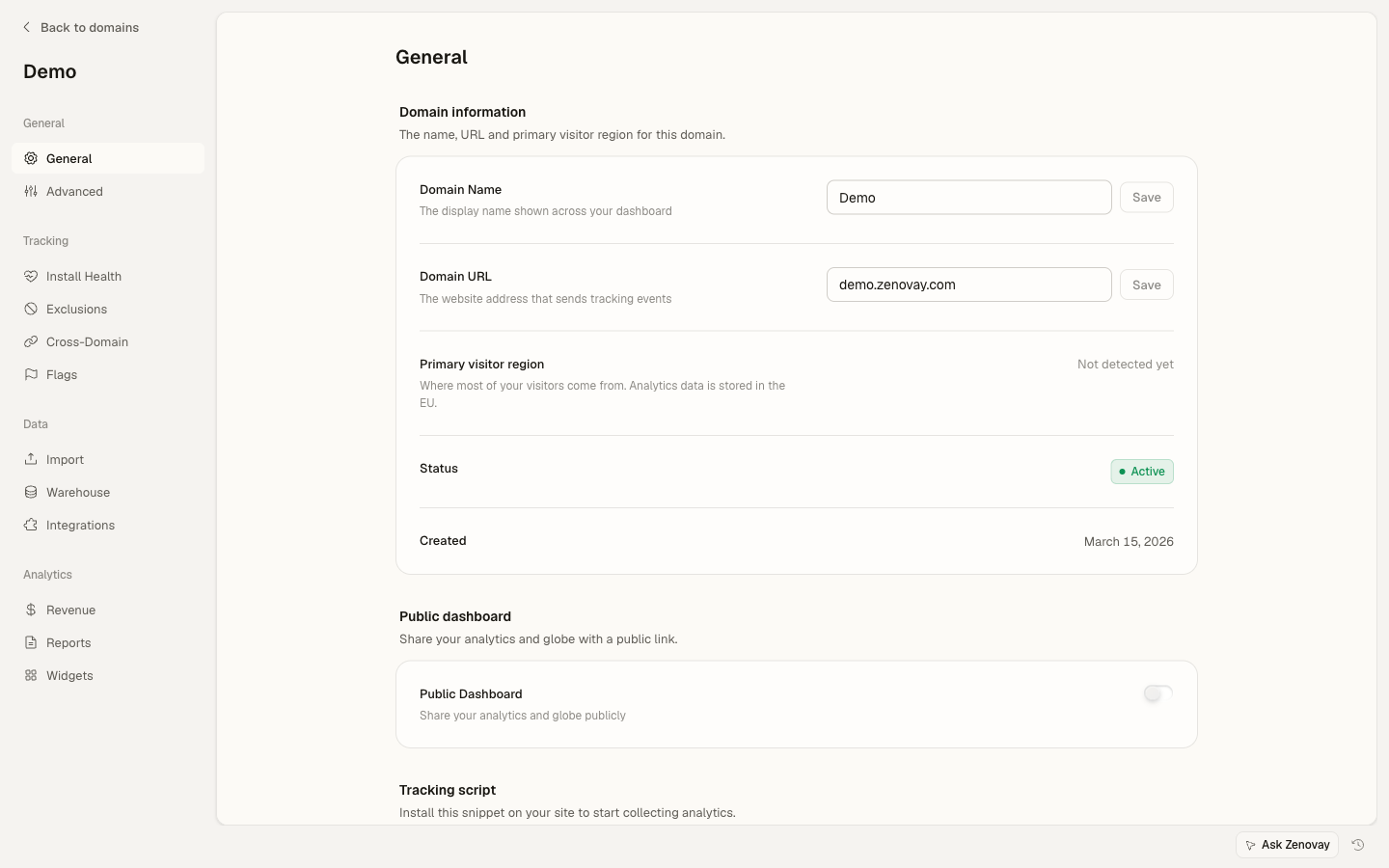
- Your Zenovay tracking code (found under Domains → your site → General, in the Tracking script card)
- Access to your project's build configuration
Your Tracking Code Format
Your tracking code looks like: ZV_XXXXXXXXXX
- Starts with
ZV_ - Followed by 10 characters (letters and numbers)
- CASE-SENSITIVE - copy it exactly
Example: ZV_Q8U0GYD70WR
Option 1: Using _redirects File (Simplest)
The easiest way to set up the proxy is using Netlify's _redirects file.
Step 1: Create the Redirects File
Create a _redirects file in your public/ folder (or wherever your static assets go):
# Zenovay first-party tracking proxy
/api/_z/*  https://api.zenovay.com/fp/:splat  200
How it works: The 200 status code makes this a rewrite (proxy) instead of a redirect. The browser sees your domain, but Netlify fetches from Zenovay's API behind the scenes.
Step 2: Add the Tracking Script
<script defer
data-tracking-code="YOUR_TRACKING_CODE"
src="/api/_z/script.js">
</script>
Step 3: Deploy
netlify deploy --prodOr push to your Git repository if you have continuous deployment configured.
Option 2: Using netlify.toml (More Explicit)
For more complex configurations, use netlify.toml:
Step 1: Create or Update netlify.toml
Add the redirect rule to your netlify.toml in your project root:
# Zenovay first-party tracking proxy
[[redirects]]
from = "/api/_z/*"
to = "https://api.zenovay.com/fp/:splat"
status = 200
force = true
If you already have a netlify.toml, add the redirect to your existing file:
[build]
command = "npm run build"
publish = "dist"

# Zenovay first-party tracking proxy
[[redirects]]
from = "/api/_z/*"
to = "https://api.zenovay.com/fp/:splat"
status = 200
force = true

# Your other redirects...
[[redirects]]
from = "/*"
to = "/index.html"
status = 200
Order matters! Put the Zenovay redirect BEFORE any catch-all redirects (like SPA fallbacks). Netlify processes redirects in order.
Step 2: Add the Tracking Script
<script defer
data-tracking-code="YOUR_TRACKING_CODE"
src="/api/_z/script.js">
</script>
Step 3: Deploy
netlify deploy --prodFramework-Specific Examples
React (Create React App)
/api/_z/* https://api.zenovay.com/fp/:splat 200<!DOCTYPE html>
<html lang="en">
<head>
<script defer data-tracking-code="YOUR_TRACKING_CODE" src="/api/_z/script.js"></script>
<!-- other head elements -->
</head>
<body>
<div id="root"></div>
</body>
</html>Vue.js (Vite)
/api/_z/* https://api.zenovay.com/fp/:splat 200<!DOCTYPE html>
<html lang="en">
<head>
<script defer data-tracking-code="YOUR_TRACKING_CODE" src="/api/_z/script.js"></script>
</head>
<body>
<div id="app"></div>
<script type="module" src="/src/main.js"></script>
</body>
</html>Gatsby
[build]
command = "gatsby build"
publish = "public"

[[redirects]]
from = "/api/_z/*"
to = "https://api.zenovay.com/fp/:splat"
status = 200
force = trueimport React from 'react'
export const onRenderBody = ({ setHeadComponents }) => {
setHeadComponents([
<script
key="zenovay"
defer
data-tracking-code="YOUR_TRACKING_CODE"
src="/api/_z/script.js"
/>
])
}Hugo
/api/_z/* https://api.zenovay.com/fp/:splat 200<script defer data-tracking-code="YOUR_TRACKING_CODE" src="/api/_z/script.js"></script>11ty (Eleventy)
/api/_z/* https://api.zenovay.com/fp/:splat 200Make sure _redirects is copied to output by adding to your .eleventy.js:
module.exports = function(eleventyConfig) {
eleventyConfig.addPassthroughCopy("src/_redirects");
// ... rest of config
}
Verify It's Working
Check in Netlify Dashboard
- Go to your site in Netlify Dashboard
- Click Site configuration → Redirects
- You should see your
/api/_z/*redirect listed
Check the Network Tab
- Visit your deployed site
- Open DevTools (F12)
- Go to the Network tab
- Reload the page
- Look for
/api/_z/script.js
You should see:
- Status: 200
- Domain: Your Netlify domain
- Response: JavaScript code
Test in Firefox Strict Mode
- Open Firefox
- Settings → Privacy & Security → Enhanced Tracking Protection: Strict
- Visit your site
- Verify the script loads successfully
Troubleshooting
Redirect Returns 404
Cause: The _redirects file isn't being published or is in the wrong location.
Solution:
- Make sure
_redirectsis in your publish directory (usuallypublic/ordist/) - For build tools, ensure the file is copied during build
- Check Netlify Dashboard → Redirects to see if it's recognized
Redirect Causes a Loop
Cause: Another redirect is interfering.
Solution:
- Use
force = trueinnetlify.tomlto override other rules - Make sure the Zenovay redirect comes BEFORE catch-all rules
- Check for conflicting
_redirectsandnetlify.tomlrules
Script Loads But Returns HTML
Cause: A catch-all SPA redirect is intercepting the request.
Solution: Put the Zenovay redirect BEFORE your SPA fallback:
# This MUST come first
[[redirects]]
from = "/api/_z/*"
to = "https://api.zenovay.com/fp/:splat"
status = 200
force = true

# SPA fallback comes after
[[redirects]]
from = "/*"
to = "/index.html"
status = 200
Geolocation Shows Wrong Location
Cause: Netlify's proxy doesn't automatically forward client IP.
Solution: Unfortunately, Netlify's simple redirects don't support custom headers. The geolocation will be based on Netlify's edge server location. For accurate geolocation, consider:
- Using Netlify Functions (Edge Functions) - more complex setup
- Using Cloudflare Workers in front of Netlify
Advanced: Using Netlify Edge Functions
For more control (including IP forwarding), you can use Netlify Edge Functions:
import type { Context } from '@netlify/edge-functions'

export default async (request: Request, context: Context) => {
const url = new URL(request.url)
const path = url.pathname.replace('/api/_z/', '')
const targetUrl = `https://api.zenovay.com/fp/${path}${url.search}`

// Get client IP
const clientIP = context.ip || ''

const headers = new Headers(request.headers)
headers.set('X-Zenovay-Real-IP', clientIP)
headers.set('X-Zenovay-Proxy-Key', Netlify.env.get('ZENOVAY_PROXY_KEY') || '')
headers.delete('Host')

const response = await fetch(targetUrl, {
  method: request.method,
  headers: headers,
  body: request.body,
})

const responseHeaders = new Headers(response.headers)
responseHeaders.set('Access-Control-Allow-Origin', '*')

return new Response(response.body, {
  status: response.status,
  headers: responseHeaders,
})
}

export const config = {
path: '/api/_z/*',
}
Complete Example
my-netlify-site/
├── netlify.toml
├── public/
│   ├── _redirects
│   └── index.html
├── src/
│   └── ...
└── package.json[build]
command = "npm run build"
publish = "dist"
[[redirects]]
from = "/api/_z/*"
to = "https://api.zenovay.com/fp/:splat"
status = 200
force = true<!DOCTYPE html>
<html lang="en">
<head>
<meta charset="UTF-8">
<title>My Site</title>
<script defer data-tracking-code="YOUR_TRACKING_CODE" src="/api/_z/script.js"></script>
</head>
<body>
<div id="app"></div>
</body>
</html>Final Checklist
Before you're done, verify ALL of these:
-
_redirectsornetlify.tomlhas the Zenovay redirect rule - Redirect rule comes BEFORE any SPA catch-all rules
- Script tag uses
/api/_z/script.js(not the direct Zenovay URL) -
data-tracking-codeattribute contains your correct tracking code - Project is deployed (not just running locally)
- Tested in Firefox with Enhanced Tracking Protection set to Strict
- Visits appearing in Zenovay dashboard
Next Steps
- Custom Events - Track user interactions
- Visitor Identification - Link analytics to users
- Troubleshooting - More help with issues
On this page