First-Party Proxy Setup
Serve Zenovay tracking through your own domain to bypass browser tracking protection and ad blockers.
A first-party proxy routes tracking through YOUR domain, so browsers see it as first-party and allow it. This can recover 15-30% more visitors.
The proxied script stops honouring Do Not Track
Every bundle served through /api/_z/script.js ships with ignoreDNT enabled, so a visitor whose browser sends the legacy Do Not Track signal is still tracked on a proxied site, whether or not you asked for that. Global Privacy Control is never overridden and is still honoured. If Do Not Track matters for your audience, serve the standard script from api.zenovay.com instead. See Privacy-first.
Why Use a First-Party Proxy?
Modern browsers block third-party tracking scripts. Here's what each browser blocks:
| Browser | Protection | Blocks api.zenovay.com? |
|---|---|---|
| Firefox | Enhanced Tracking Protection (ETP) | Yes |
| Brave | Shields | Yes |
| Edge | Tracking Prevention | Yes |
| Opera | Built-in Blocker | Yes |
| Safari | Intelligent Tracking Prevention (ITP) | Partial |
| Chrome | Limited (for now) | Some extensions |
How It Works
Without proxy (blocked):
Browser → api.zenovay.com ❌ (Third-party = blocked by browsers)

With proxy (works):
Browser → yourdomain.com/api/_z/* ✅ (First-party = allowed)
     ↓
Your Server → api.zenovay.com/fp/* (Server-to-server = always works)
The browser only sees requests to YOUR domain, so tracking protection doesn't apply.
Understanding Same-Origin (Critical!)
This is the most important concept to understand.
Not all "first-party" approaches are equal. There's a critical difference between same-domain proxy and custom subdomain.
The Two Approaches
| Approach | Example | Firefox ETP | Why |
|---|---|---|---|
| Same-domain proxy | /api/_z/script.js | ✅ WORKS | Same origin |
| Custom subdomain | z.yourdomain.com | ❌ BLOCKED | Different origin |
What is "Same Origin"?
Browsers define "same origin" as: same protocol + same domain + same port
https://yourdomain.com (your site)

❌ https://z.yourdomain.com    → Different origin (different subdomain)
❌ https://api.yourdomain.com  → Different origin (different subdomain)
✅ https://yourdomain.com/api/ → SAME origin (just a path)
Why Subdomains Don't Work for Firefox
Even though z.yourdomain.com looks "first-party", Firefox ETP treats it as third-party because:
- Origin check:
z.yourdomain.com≠yourdomain.com - Cross-origin request: Browser makes request to different origin
- ETP blocks: Firefox blocks cross-origin tracking requests
Why Same-Domain Proxy Works
With /api/_z/script.js:
- Origin check:
yourdomain.com/api/_z/=yourdomain.com✅ - Same-origin request: Browser makes first-party request
- ETP allows: Firefox allows same-origin requests
- Server proxies: Your server forwards to Zenovay (browser never sees this)
Bottom line: If you need Firefox compatibility, use the same-domain proxy approach (Vercel, Netlify, Next.js, Cloudflare Pages, nginx, Apache, Astro).
The Cloudflare Workers custom subdomain approach (z.yourdomain.com) does NOT bypass Firefox ETP - it only bypasses some ad blockers.
Choose Your Platform
Select your hosting platform to get started with a detailed step-by-step guide:
Next.js
Use next.config.js rewrites. The simplest option for Next.js projects.
Cloudflare Workers
Perfect for shared hosting users. Create a free Worker in 5 minutes.
Cloudflare Pages
Use Pages Functions if you're already hosting on Cloudflare Pages.
Vercel
Use vercel.json rewrites or Edge Middleware. Works with any framework.
Netlify
Simple _redirects file or netlify.toml configuration.
nginx / Apache
Self-hosted servers using reverse proxy configuration.
Astro
API routes for Astro projects with SSR enabled.
Quick Reference
| Your Setup | Best Option | Guide |
|---|---|---|
| Next.js project | next.config.js rewrites | Next.js Guide |
| Vercel (any framework) | vercel.json rewrites | Vercel Guide |
| Netlify | _redirects file | Netlify Guide |
| Cloudflare Pages | Pages Functions | CF Pages Guide |
| Cloudflare (general) | Cloudflare Workers | CF Workers Guide |
| Self-hosted server | nginx/Apache proxy | nginx/Apache Guide |
| Astro | API routes | Astro Guide |
| Shared hosting (Hostinger, GoDaddy, etc.) | Cloudflare Workers (free) | CF Workers Guide |
Using shared hosting (Hostinger, GoDaddy, Bluehost)?
These platforms don't support server-side proxying. Create a FREE Cloudflare account and use Cloudflare Workers instead. It takes 5 minutes and works perfectly.
After Setup: Update Your Script
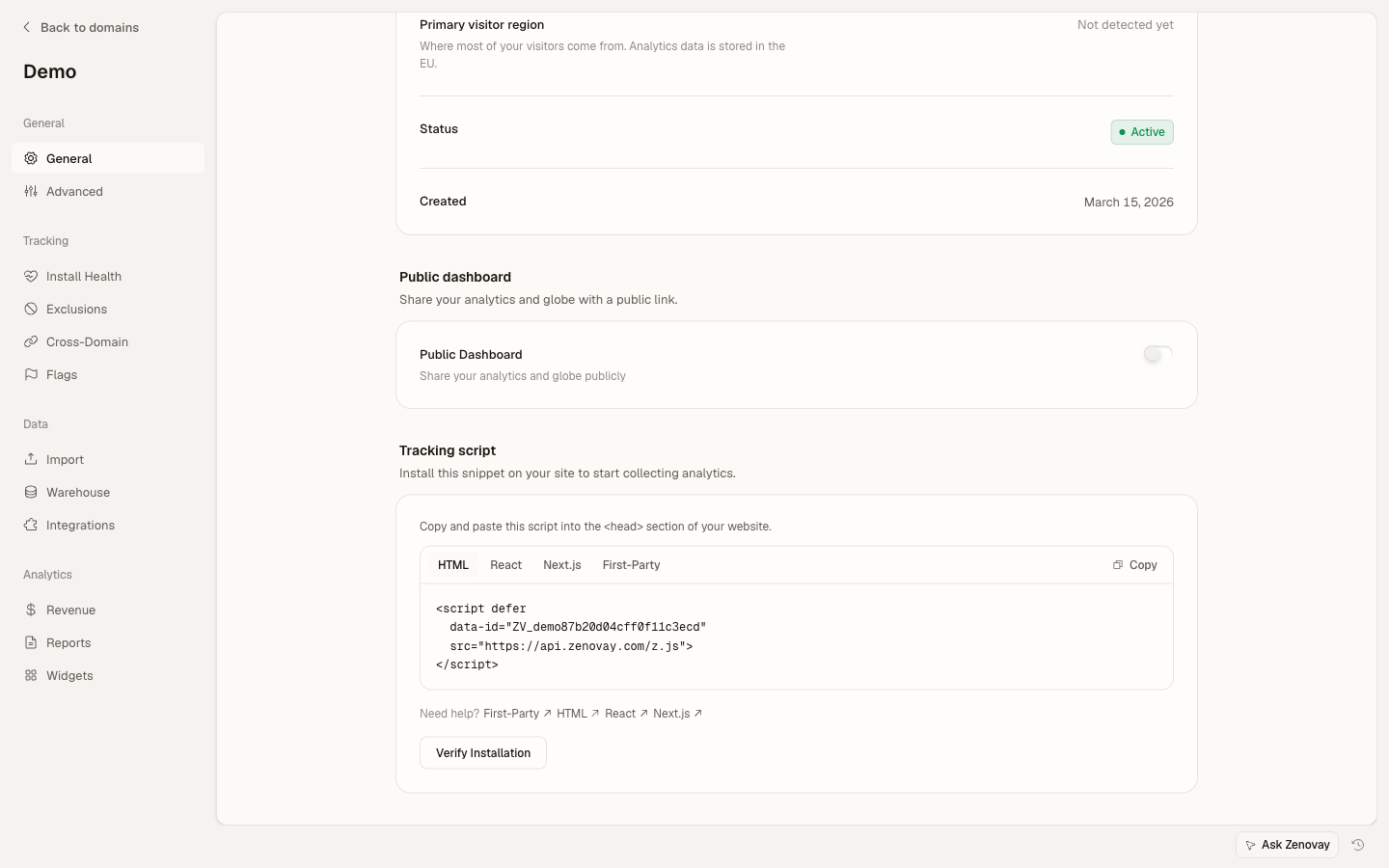
Once you've set up the proxy, update your tracking script. You can find the First-Party snippet in your domain settings: open Domains, click your site, then go to the General page and select the First-Party tab in the Tracking script card.
<script defer
data-tracking-code="YOUR_TRACKING_CODE"
src="https://api.zenovay.com/z.js">
</script><script defer
data-tracking-code="YOUR_TRACKING_CODE"
src="/api/_z/script.js">
</script>IMPORTANT: Cloudflare Workers Limitation
The Cloudflare Workers approach (z.yourdomain.com) does NOT bypass Firefox ETP because subdomains are still different origins.
For Firefox compatibility, use one of the same-domain proxy options instead:
Verify It's Working
After setting up, verify the proxy is working:
1. Check Network Tab
- Open DevTools (F12 or Cmd+Option+I)
- Go to the Network tab
- Reload your page
- Look for
/api/_z/script.js(or your custom domain path) - Should show 200 status from YOUR domain
2. Test in Firefox (Strictest)
Firefox has the strictest tracking protection:
- Open Firefox
- Settings → Privacy & Security → Enhanced Tracking Protection: Strict
- Visit your website
- Check the script loads successfully
If it works in Firefox strict mode, it works everywhere.
API Endpoints Reference
Your proxy should forward these paths:
| Your Path | Zenovay API | Purpose |
|---|---|---|
/api/_z/script.js | /fp/script.js | Tracking script |
/api/_z/e/:code | /fp/e/:code | Page view events |
/api/_z/settings/:code | /fp/settings/:code | Website settings |
/api/_z/load | /fp/load | Dynamic loader |
Proxy Key for Self-Hosted Proxies
If you run your own proxy that forwards tracking requests to https://api.zenovay.com/fp/... and sets X-Zenovay-Real-IP, you can protect the visitor IP with a proxy key. You do not need one for the CNAME (z.yourdomain.com) setup or the plain script tag.
- Create the key in Domain settings > General > First-party proxy key with Create key. It starts with
zvpk_and is shown only once, so copy it right away. - Set up your Cloudflare Pages proxy with
zenovay init(1.0.38 or newer)? It creates the key for you and shows where to add it: Workers & Pages > your project > Settings > Variables and Secrets > Add, as an encrypted variable namedZENOVAY_PROXY_KEY. - Send it on every forwarded request in the
X-Zenovay-Proxy-Keyheader. Store it as a secret environment variable namedZENOVAY_PROXY_KEY. - With a valid key, Zenovay trusts the visitor IP your proxy forwards. A new key takes effect after the first request that carries it, so you can create the key first and update your proxy afterwards without losing data. Until then, the key shows as waiting for your proxy. From then on, requests through
/fpwithout the key (or with a wrong one) can no longer set the visitor IP and count as coming from the proxy's own IP. - Sites without a key behave as before, so the key is optional but recommended.
- You can replace the key (the old one stops working immediately) or remove it in the same place.
Troubleshooting
Having issues? Check these common problems:
- Script returns 404 - Verify your proxy path configuration
- CORS errors - Make sure your proxy adds CORS headers
- Geolocation wrong - Forward the client IP with
X-Zenovay-Real-IPheader - Still blocked - Make sure you're using the proxied path, not the direct URL
For detailed troubleshooting, see each platform's specific guide or the general troubleshooting page.
Next Steps
- Custom Events - Track button clicks and form submissions
- Visitor Identification - Connect analytics to user accounts
- Troubleshooting - Common issues and fixes
On this page