First-Party Tracking with nginx/Apache
Set up a first-party proxy on your self-hosted server using nginx or Apache reverse proxy configuration.
Difficulty: Medium - Requires access to server configuration files and basic terminal knowledge.
Why This Works (Same-Origin)
This approach uses /api/_z/script.js which is on the same origin as your website. Firefox ETP and other tracking protections only block cross-origin requests.
- Browser sees:
yourdomain.com/api/_z/script.js→ Same origin ✅ - nginx/Apache proxies the request to Zenovay server-side (browser never sees this)
- All tracking protection is bypassed because the request is first-party
The proxied script stops honouring Do Not Track
Every bundle served through /api/_z/script.js ships with ignoreDNT enabled, so a visitor whose browser sends the legacy Do Not Track signal is still tracked on a proxied site, whether or not you asked for that. Global Privacy Control is never overridden and is still honoured. If Do Not Track matters for your audience, serve the standard script from api.zenovay.com instead. See Privacy-first.
Before You Start
Make sure you have:
- Root/sudo access to your server
- nginx or Apache installed
- Your Zenovay tracking code (found under Domains, select your site, then the General tab)
- SSH access to your server
Your Tracking Code Format
Your tracking code looks like: ZV_XXXXXXXXXX
- Starts with
ZV_ - Followed by 10 characters (letters and numbers)
- CASE-SENSITIVE - copy it exactly
Example: ZV_Q8U0GYD70WR
nginx Configuration
Step 1: Add the Proxy Location
Add the following location block to your nginx server configuration:
server {
  listen 80;
  listen 443 ssl;
  server_name yourdomain.com www.yourdomain.com;

  # Your existing SSL configuration...
  ssl_certificate /etc/letsencrypt/live/yourdomain.com/fullchain.pem;
  ssl_certificate_key /etc/letsencrypt/live/yourdomain.com/privkey.pem;

  # Your existing root configuration...
  root /var/www/yourdomain;
  index index.html;

  # Zenovay first-party proxy
  location /api/_z/ {
      # Proxy to Zenovay's first-party endpoint
      proxy_pass https://api.zenovay.com/fp/;

      # Set the correct Host header
      proxy_set_header Host api.zenovay.com;

      # Forward the real client IP for accurate geolocation
      proxy_set_header X-Real-IP $remote_addr;
      proxy_set_header X-Forwarded-For $proxy_add_x_forwarded_for;
      proxy_set_header X-Zenovay-Real-IP $remote_addr;
      proxy_set_header X-Zenovay-Proxy-Key "<your proxy key>";

      # Required for HTTPS backend
      proxy_ssl_server_name on;
      proxy_ssl_protocols TLSv1.2 TLSv1.3;

      # Timeouts
      proxy_connect_timeout 10s;
      proxy_send_timeout 10s;
      proxy_read_timeout 30s;

      # Buffering
      proxy_buffering on;
      proxy_buffer_size 4k;
      proxy_buffers 8 4k;
  }

  # Your existing location blocks...
  location / {
      try_files $uri $uri/ =404;
  }
}
Step 2: Test the Configuration
# Test nginx configuration
sudo nginx -t

# If test passes, reload nginx
sudo systemctl reload nginx
Step 3: Add the Tracking Script
<script defer
data-tracking-code="YOUR_TRACKING_CODE"
src="/api/_z/script.js">
</script>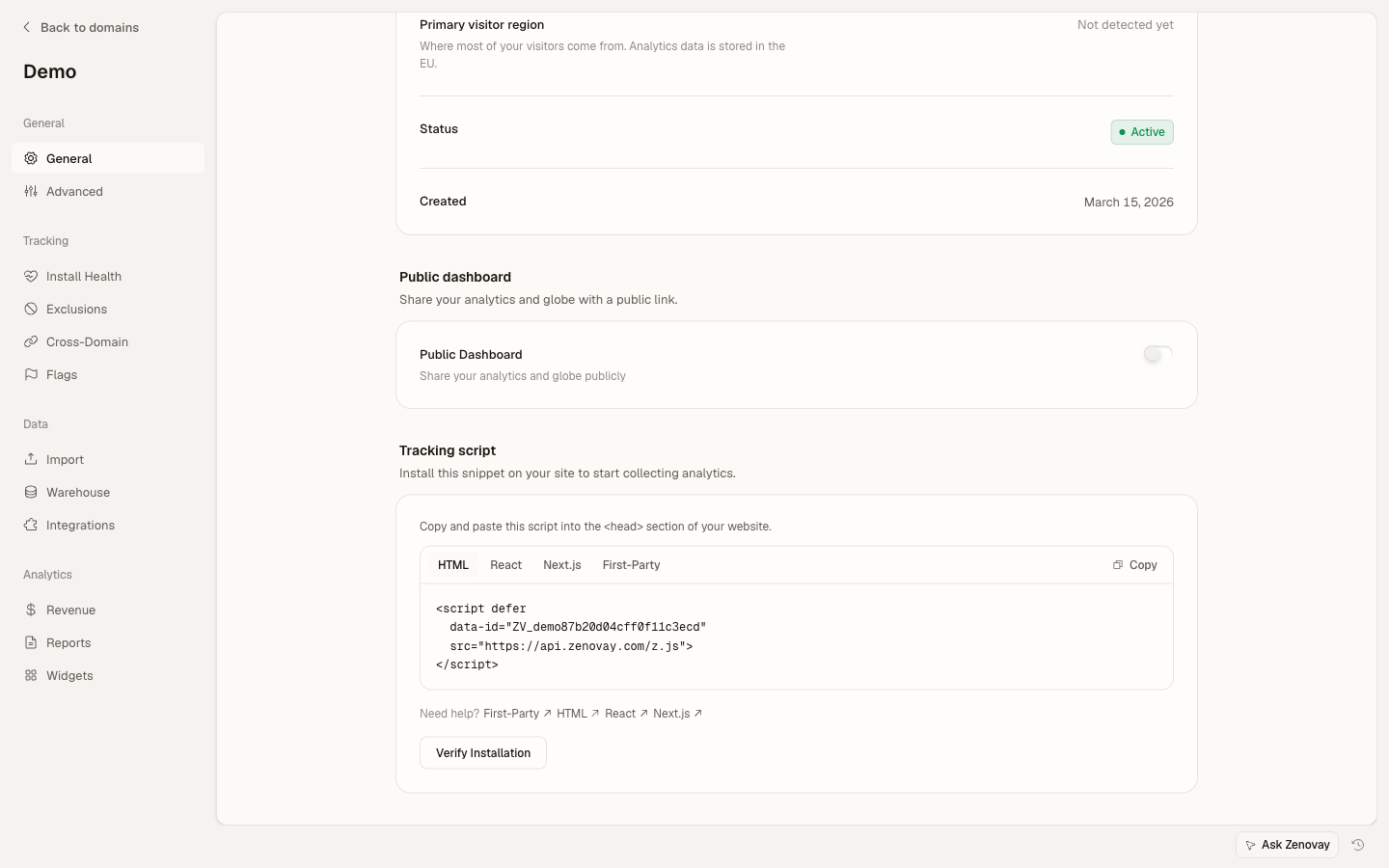
Apache Configuration
Step 1: Enable Required Modules
First, enable the necessary Apache modules:
# Enable proxy modules
sudo a2enmod proxy
sudo a2enmod proxy_http
sudo a2enmod ssl
sudo a2enmod headers

# Restart Apache
sudo systemctl restart apache2
Step 2: Add the Proxy Configuration
Add the following to your Apache virtual host configuration:
<VirtualHost *:443>
  ServerName yourdomain.com
  ServerAlias www.yourdomain.com

  # Your existing SSL configuration...
  SSLEngine on
  SSLCertificateFile /etc/letsencrypt/live/yourdomain.com/fullchain.pem
  SSLCertificateKeyFile /etc/letsencrypt/live/yourdomain.com/privkey.pem

  # Your existing document root...
  DocumentRoot /var/www/yourdomain

  # Enable SSL for proxy connections
  SSLProxyEngine on
  SSLProxyVerify none
  SSLProxyCheckPeerCN off
  SSLProxyCheckPeerName off

  # Zenovay first-party proxy
  ProxyPass "/api/_z/" "https://api.zenovay.com/fp/"
  ProxyPassReverse "/api/_z/" "https://api.zenovay.com/fp/"

  <Location "/api/_z/">
      # Don't preserve the original Host header
      ProxyPreserveHost Off

      # Forward the real client IP
      RequestHeader set X-Zenovay-Real-IP "%{REMOTE_ADDR}s"
      RequestHeader set X-Zenovay-Proxy-Key "<your proxy key>"
      RequestHeader set X-Real-IP "%{REMOTE_ADDR}s"
      RequestHeader set X-Forwarded-For "%{REMOTE_ADDR}s"
  </Location>

  # Your existing configuration...
  <Directory /var/www/yourdomain>
      Options Indexes FollowSymLinks
      AllowOverride All
      Require all granted
  </Directory>
</VirtualHost>
Alternative: Using .htaccess
If you don't have access to the main Apache config, you can use .htaccess (requires mod_rewrite and mod_proxy):
RewriteEngine On

# Zenovay first-party proxy
RewriteRule ^api/_z/(.*)$ https://api.zenovay.com/fp/$1 [P,L]

<IfModule mod_headers.c>
  <Location "/api/_z">
      RequestHeader set X-Zenovay-Real-IP "%{REMOTE_ADDR}s"
      RequestHeader set X-Zenovay-Proxy-Key "<your proxy key>"
  </Location>
</IfModule>
Note: Using .htaccess for proxying requires AllowOverride All and mod_proxy enabled by your hosting provider. Many shared hosts don't allow this.
Step 3: Test and Restart
# Test Apache configuration
sudo apachectl configtest

# If test passes, restart Apache
sudo systemctl restart apache2
Step 4: Add the Tracking Script
<script defer
data-tracking-code="YOUR_TRACKING_CODE"
src="/api/_z/script.js">
</script>
Verify It's Working
Test with curl
# Test the proxy endpoint
curl -I https://yourdomain.com/api/_z/script.js

# Expected output:
# HTTP/2 200
# content-type: application/javascript
# ...
Check the Network Tab
- Open your website in a browser
- Open DevTools (F12)
- Go to the Network tab
- Reload the page
- Look for
/api/_z/script.js
You should see:
- Status: 200
- Domain: Your domain (not api.zenovay.com)
- Response: JavaScript code
Test in Firefox
- Open Firefox
- Settings → Privacy & Security → Enhanced Tracking Protection: Strict
- Visit your site
- Verify the script loads successfully
Troubleshooting
nginx: 502 Bad Gateway
Cause: nginx can't connect to the Zenovay API.
Solution:
- Check if
proxy_ssl_server_name on;is set - Verify your server can reach api.zenovay.com:
curl https://api.zenovay.com/fp/script.js - Check nginx error logs:
sudo tail -f /var/log/nginx/error.log
nginx: 404 Not Found
Cause: The location block isn't matching.
Solution:
- Make sure the trailing slash is consistent:
location /api/_z/matches/api/_z/script.jsproxy_pass https://api.zenovay.com/fp/;(note trailing slash)
- Test with
nginx -tand reload
Apache: 503 Service Unavailable
Cause: Proxy modules not enabled or SSL issue.
Solution:
- Enable required modules:
sudo a2enmod proxy proxy_http ssl - Add SSL proxy settings:
SSLProxyEngine on SSLProxyVerify none - Check Apache error logs:
sudo tail -f /var/log/apache2/error.log
Geolocation Shows Server Location
Cause: The real client IP isn't being forwarded correctly.
Solution:
Make sure you're setting the X-Zenovay-Real-IP header:
nginx:
proxy_set_header X-Zenovay-Real-IP $remote_addr;
proxy_set_header X-Zenovay-Proxy-Key "<your proxy key>";
Apache:
RequestHeader set X-Zenovay-Real-IP "%{REMOTE_ADDR}s"
RequestHeader set X-Zenovay-Proxy-Key "<your proxy key>"
If Behind Cloudflare or Load Balancer
If your server is behind Cloudflare or another proxy, use the forwarded IP:
nginx (behind Cloudflare):
proxy_set_header X-Zenovay-Real-IP $http_cf_connecting_ip;
nginx (behind load balancer):
proxy_set_header X-Zenovay-Real-IP $http_x_forwarded_for;
Performance Optimization
nginx Caching
Add caching for the tracking script (optional):
location /api/_z/ {
  proxy_pass https://api.zenovay.com/fp/;

  # ... other proxy settings ...

  # Cache the script for 1 hour
  proxy_cache_valid 200 1h;
  proxy_cache_use_stale error timeout updating;
  add_header X-Cache-Status $upstream_cache_status;
}
Apache Caching
<Location "/api/_z/">
  # Enable caching
  CacheEnable disk
  CacheDefaultExpire 3600
</Location>
Complete nginx Example
server {
  listen 80;
  server_name yourdomain.com www.yourdomain.com;
  return 301 https://$server_name$request_uri;
}

server {
  listen 443 ssl http2;
  server_name yourdomain.com www.yourdomain.com;

  ssl_certificate /etc/letsencrypt/live/yourdomain.com/fullchain.pem;
  ssl_certificate_key /etc/letsencrypt/live/yourdomain.com/privkey.pem;

  root /var/www/yourdomain;
  index index.html;

  # Zenovay first-party proxy
  location /api/_z/ {
      proxy_pass https://api.zenovay.com/fp/;
      proxy_set_header Host api.zenovay.com;
      proxy_set_header X-Real-IP $remote_addr;
      proxy_set_header X-Forwarded-For $proxy_add_x_forwarded_for;
      proxy_set_header X-Zenovay-Real-IP $remote_addr;
      proxy_set_header X-Zenovay-Proxy-Key "<your proxy key>";
      proxy_ssl_server_name on;
  }

  location / {
      try_files $uri $uri/ /index.html;
  }
}
Final Checklist
Before you're done, verify ALL of these:
- nginx/Apache config has the proxy location for
/api/_z/ - Config test passes (
nginx -torapachectl configtest) - Server reloaded after config change
- Script tag uses
/api/_z/script.js(not the direct Zenovay URL) -
data-tracking-codeattribute contains your correct tracking code -
X-Zenovay-Real-IPheader is being set for geolocation - Tested in Firefox with Enhanced Tracking Protection set to Strict
- Visits appearing in Zenovay dashboard
Next Steps
- Custom Events - Track user interactions
- Visitor Identification - Link analytics to users
- Troubleshooting - More help with issues
On this page